
ProSite Login
Starkey is changing how you log in to the ProSite. You will need to change your password to continue using the ProSite.
What are the steps to change my password?
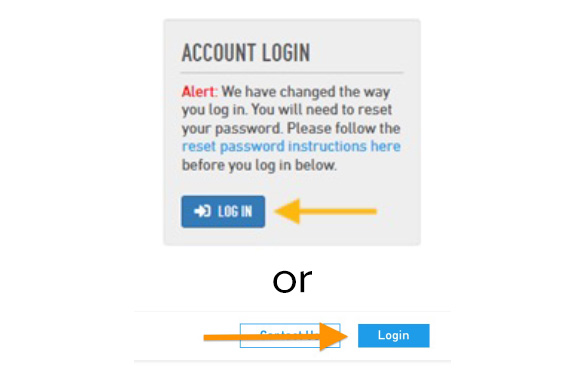
Click the Log In button.
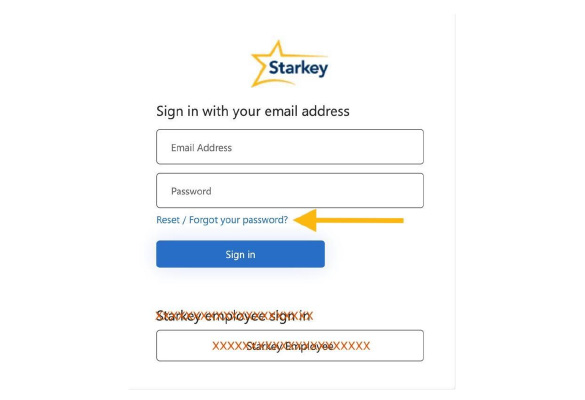
Click the Reset/Forgot your password link.
This will start the password change process.
Do not click Starkey Employee button.
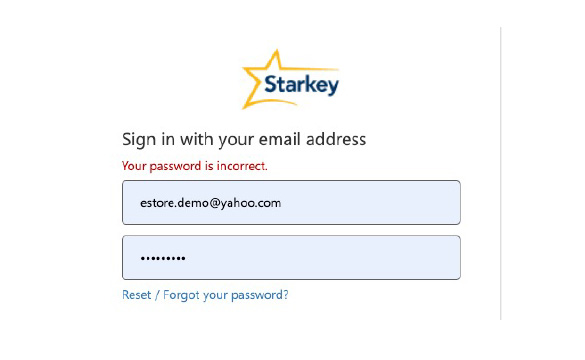
If you do not click the Reset/Forgot your password link in the step above and you try to login, you will see this message:
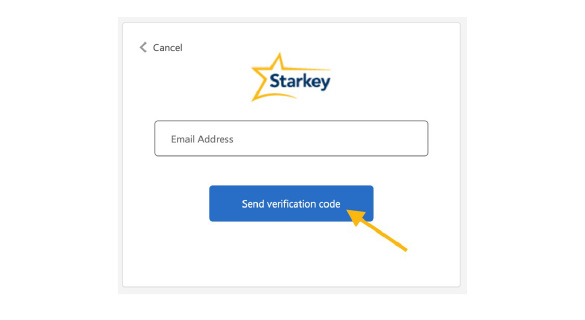
Enter your email address and click the Send verification code button.
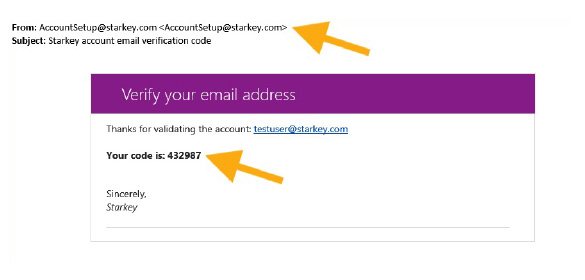
Check your inbox for an email from accountsetup@starkey.com. This will contain a unique 6 digit verification code.
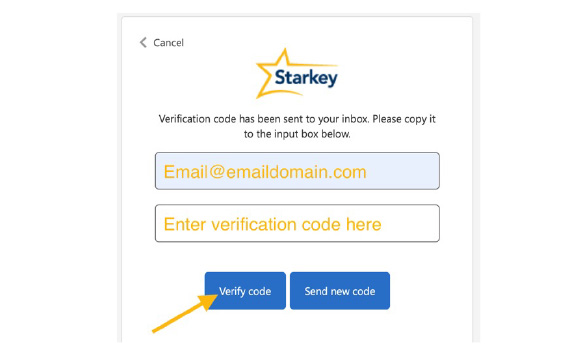
Enter your email address and the 6 digit verification code you recieved in the email.
Click the Verify code button.
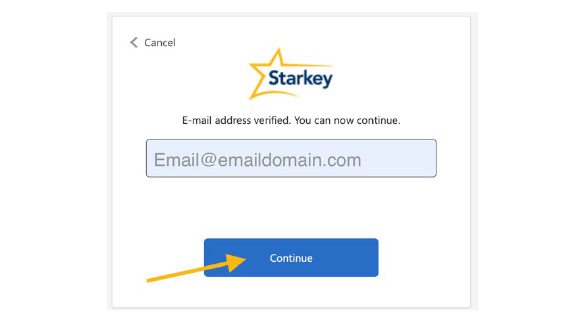
Review your email address for accuracy and click the Continue button.
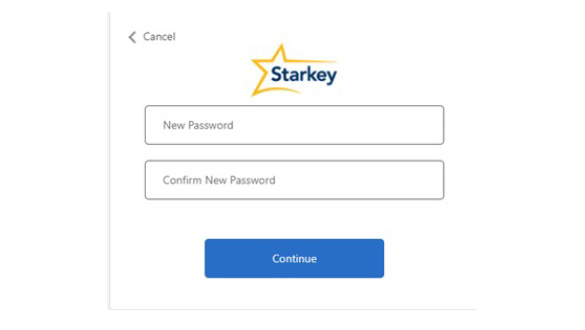
Enter a new password to use with your account going forward.
This will be your new password for the ProSite.
Click the Continue button.